

our safe hands.
high customizing features, and data security.
automation services.
best business automation services at your desk.


Our expertise team reduces the complexities in business with automation
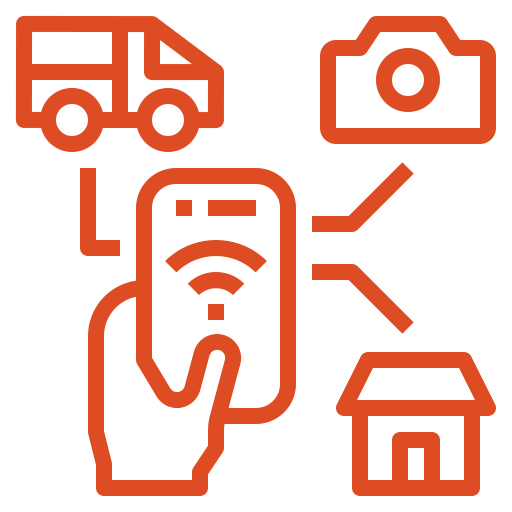
Internet of Things
Our experts interconnect your business devices with IoT solutions.
ML & AI
Our ML & AI services will be replacing humans for your business.
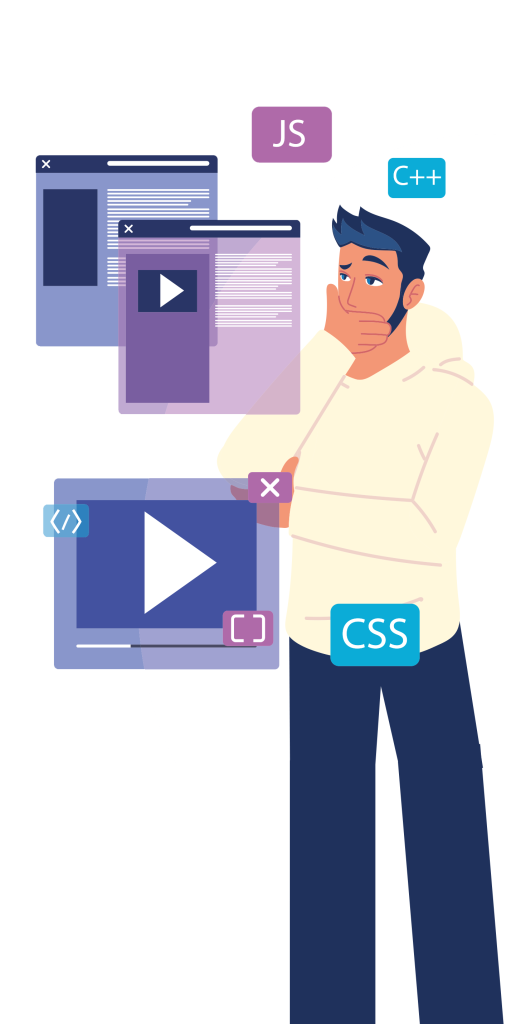
Custom Software Development
We ensure customization features to saturate your business goals.

Code Refactoring
Our developer expertise revamps your outmoded software to new trends.


Cloud DevOps
From development to deployment, we care your business application.






Kalvi40 is proud to have FTC as reliable IT partner for last 3 years, they have created a stable platform and enabled the possibility of reaching remotest of rural villages through technology. Technically good young team taking so much ownership and truly so happy for their value for money IT services model offering.

A young and dynamic Team, having deep understanding of technology and user need. Very calm and flexible to meet customer requirement. Delivers what they commit. A good partner to work with for any of our digitalization need All the best to team.



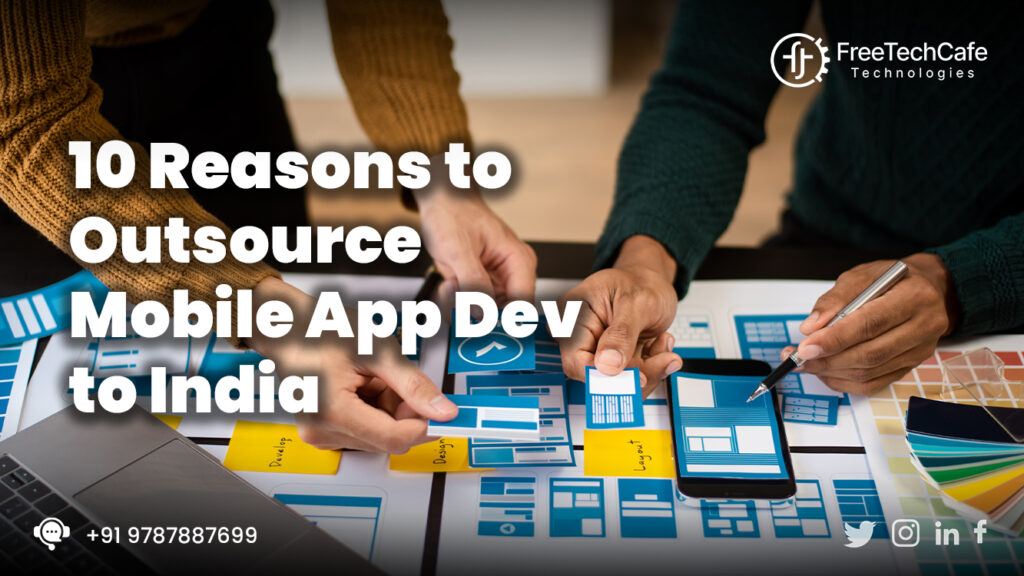
Essential Reasons for Outsourcing Mobile App Development to India
Are you a business owner with a brilliant app idea on the horizon? Are you struggling...

7 Tips on How to Choose a Software Partner
Finding a reliable software development partner can be a daunting task since it is highly required...
3 Ways Digital Transformation Is Transforming The Banking Industry
In this modern age, digitalization has transfused every aspect of our lives, transforming how we live,...

InsurTech: Technology Trends Changing The Insurance Industry In 2023
Technology is becoming a boon for many industries, simplifying huge business complexities in a fraction of...
The Significance of Artificial Intelligence to Mobile and Web Technology
Can you imagine a world without Artificial Intelligence? It's a big no!! Artificial Intelligence cannot replace...
The ChatGPT Revolution: The Business Side Of AI
ChatGPT is evident in the successive transformation of AI. For over 2 decades, AI has reached...